
image(PATH, 0, 0);
tint("#D4AF37");
image(PATH, width/2, 0, IMAGE_WIDTH, fit: CROP, offsetX: -IMAGE_WIDTH/2);Half-Tinted Magic: How to Add a Color Tint to Just Part of an Image
Jul 14, 2026
1 minute read.
d
dlang
chitra
lua
In the last blog post, we explored the Tint feature available in Chitra. In this blog post, we will explore how to add a tint to only half of an image (or any other portion).
We will use a trick here. First, draw the full image, then draw only the second half using CROP fitting and an Offset (Negative Offset shifts the image origin). Apply tint only to the second image.
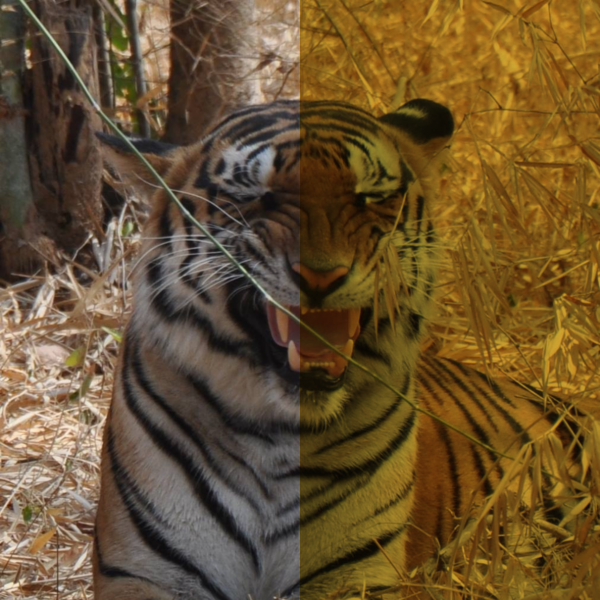
Full Code (Sets the paper size to the same as the image size):
#!/usr/bin/env dub
/+ dub.sdl:
 dependency "chitra" version="~>0.4.0"
 +/
import std.stdio;

import chitra;

int main(string[] args)
{
    // Inputs:
    if (args.length != 4)
    {
        writefln("USAGE: %s <INFILE> <OUTFILE> <TINT-COLOR>", args[0]);
        return 1;
    }

    auto imagePath = args[1];
    auto outFile = args[2];
    auto tintColor = args[3];

    // Default Chitra Context
    auto ctx = new Chitra;

    // Get image size and set the paper size to the same as the image
    auto imgBox = ctx.imageSize(imagePath);
    ctx.setSize(imgBox.width, imgBox.height);

    // Draw full image
    //        PATH       X  Y
    ctx.image(imagePath, 0, 0);

    // Add Tint and draw the second half of the image
    ctx.tint(tintColor);

    // Draw the second half
    //        PATH       X              Y  W             H
    ctx.image(imagePath, ctx.width / 2, 0, imgBox.width, imgBox.height,
              fit: CROP, offsetX: -imgBox.width / 2);

    ctx.saveAs(outFile, resolution: 72);

    return 0;
}
# INFILE OUTFILE TINT_COLOR
dub tint_half.d tiger.png tiger_tinted.png "#D4AF37"About Aravinda VK
Partner at Kadalu Investments, Creator of Sanka, Creator of Chitra, GlusterFS core team member, Maintainer of Kadalu Storage